> ## Documentation Index
> Fetch the complete documentation index at: https://docs.nomadpay.io/llms.txt
> Use this file to discover all available pages before exploring further.
# Core Features
This chapter provides an in-depth look at the feature modules you will use most frequently in your daily operations.
## Overview Page
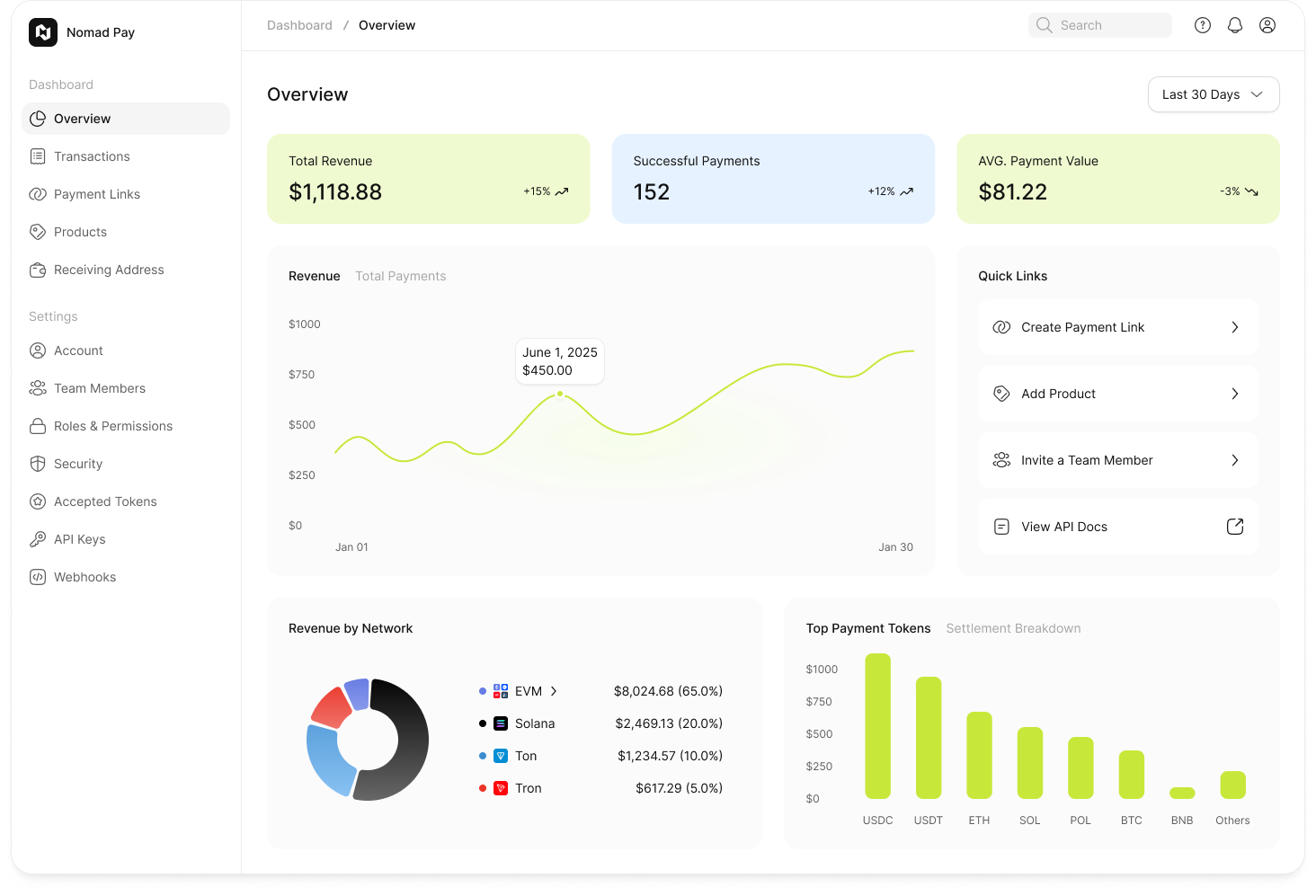 The `Overview` page is the first screen you see after logging in. It's the "command center" for your business.
* **Date Range Filter:** Located in the top-right corner (e.g., `Last 30 Days ▼`). It controls the statistical range for all data cards and charts on this page.
* **KPI Cards:** Quickly view your key metrics like `Total Revenue`, `Successful Payments`, etc.
* **Sales Trend Chart:** Displays your sales revenue or payment count over time in a chart format.
* **Revenue by Network:** See which blockchain networks your revenue is coming from (e.g., `EVM Chains`, `Solana`).
* **Top Payment Tokens:** Analyze which cryptocurrencies your customers use most often to pay.
## Products
The `Products` module is your catalog for managing goods and services.
* **Price Snapshot Logic:** This is a very important concept. When you edit a "Product's" price, it will **only affect new payment links** created in the future. All pre-existing links will **retain** the price they had when they were created, ensuring stability for links you've already shared.
* **Product Detail Page:** By clicking on any product, you can view its detailed configuration and a **list of all payment links associated with this product**.
## Payment Links
The `Payment Links` module is where you manage all your checkout links.
### Reusable vs. Single-Use
When creating a link, you can set two types:
* **Reusable Link:** The default option. One link can be used by multiple people, multiple times. Ideal for selling standard products or subscriptions.
* **Single-Use Link:** The link will **automatically deactivate** after **one** successful payment. Ideal for single-time fees or consultation services for a specific client.
### Sharing Your Link
From the link list or the detail page, you can always:
1. **Copy URL:** The `[Copy]` button is used to copy the link address.
2. **Get QR Code:** On the detail page, in the `[Share ↑]` button's pop-up, you can find and download the link's dedicated QR code, perfect for offline or live-stream sharing.
### Viewing Link Analytics
By clicking on any **reusable link** in the list, you will be taken to its **detail page**.
* You will see the link's exclusive KPI cards (total revenue, views, conversion rate, etc.) and its sales trend chart.
* **Note:** "Single-Use Links" do not have complex analytics charts; they will only show their status (`Awaiting Payment` or `Used`).
## Transactions
The `Overview` page is the first screen you see after logging in. It's the "command center" for your business.
* **Date Range Filter:** Located in the top-right corner (e.g., `Last 30 Days ▼`). It controls the statistical range for all data cards and charts on this page.
* **KPI Cards:** Quickly view your key metrics like `Total Revenue`, `Successful Payments`, etc.
* **Sales Trend Chart:** Displays your sales revenue or payment count over time in a chart format.
* **Revenue by Network:** See which blockchain networks your revenue is coming from (e.g., `EVM Chains`, `Solana`).
* **Top Payment Tokens:** Analyze which cryptocurrencies your customers use most often to pay.
## Products
The `Products` module is your catalog for managing goods and services.
* **Price Snapshot Logic:** This is a very important concept. When you edit a "Product's" price, it will **only affect new payment links** created in the future. All pre-existing links will **retain** the price they had when they were created, ensuring stability for links you've already shared.
* **Product Detail Page:** By clicking on any product, you can view its detailed configuration and a **list of all payment links associated with this product**.
## Payment Links
The `Payment Links` module is where you manage all your checkout links.
### Reusable vs. Single-Use
When creating a link, you can set two types:
* **Reusable Link:** The default option. One link can be used by multiple people, multiple times. Ideal for selling standard products or subscriptions.
* **Single-Use Link:** The link will **automatically deactivate** after **one** successful payment. Ideal for single-time fees or consultation services for a specific client.
### Sharing Your Link
From the link list or the detail page, you can always:
1. **Copy URL:** The `[Copy]` button is used to copy the link address.
2. **Get QR Code:** On the detail page, in the `[Share ↑]` button's pop-up, you can find and download the link's dedicated QR code, perfect for offline or live-stream sharing.
### Viewing Link Analytics
By clicking on any **reusable link** in the list, you will be taken to its **detail page**.
* You will see the link's exclusive KPI cards (total revenue, views, conversion rate, etc.) and its sales trend chart.
* **Note:** "Single-Use Links" do not have complex analytics charts; they will only show their status (`Awaiting Payment` or `Used`).
## Transactions
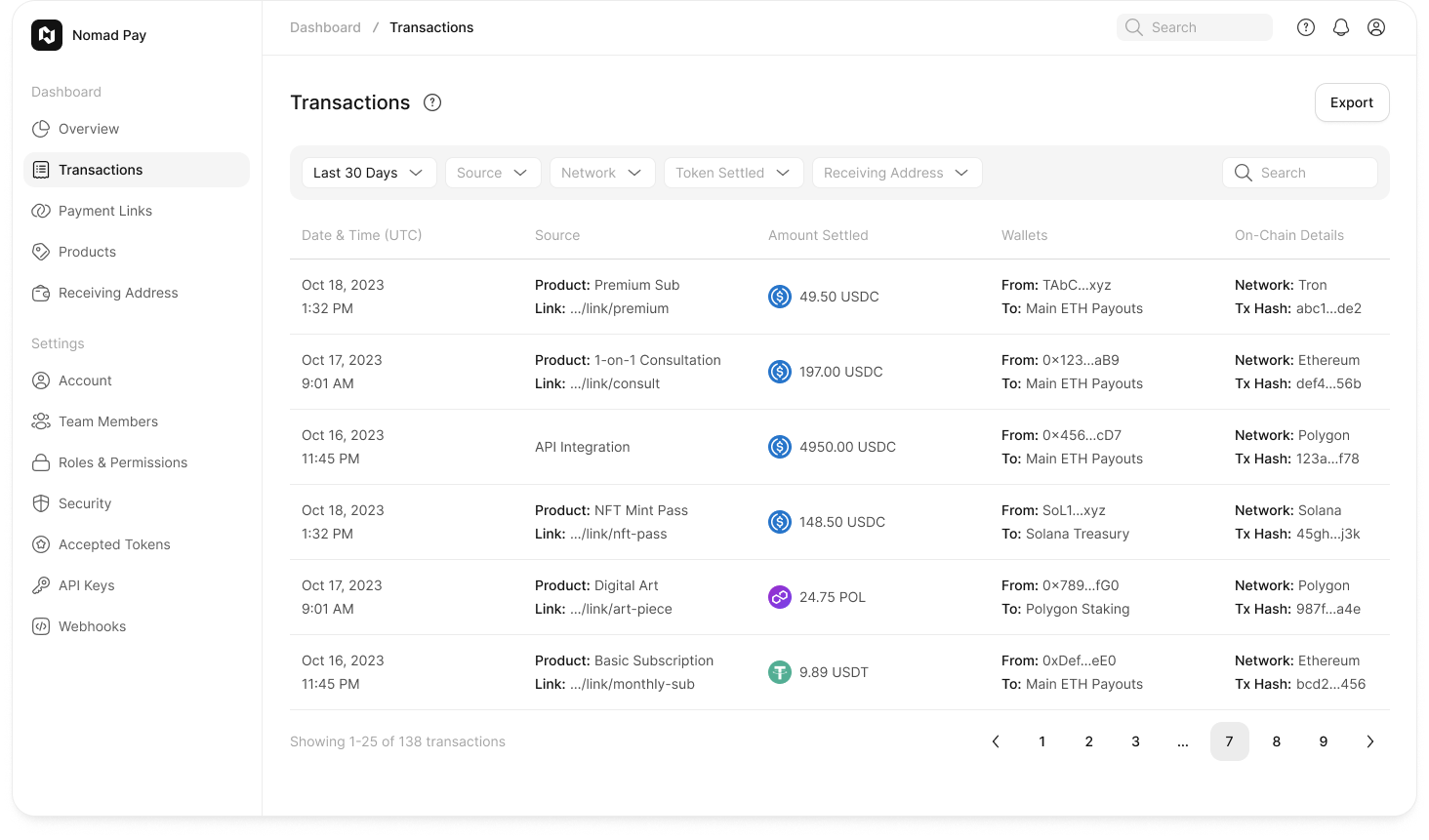 The `Transactions` page is your "final ledger" for all **successful payments**.
**Important Note:** This list **only displays successfully completed transactions**. Failed or pending payment attempts are not recorded here.
* **How to Filter:** You can use the filter bar at the top of the page to find transactions by `Date Range`, `Source`, `Network`, and other dimensions.
* **How to Export:**
1. Click the `[Export]` button in the top-right corner.
2. In the pop-up modal, select your desired `Date Range`.
3. Select your `Columns`. You can choose `All Columns` or `Custom` to check the specific fields you need.
4. Click `Generate Report`. The report will be generated in the background.
5. Once complete, the system will send you an email with a **secure download link**.
* **How to Read Details:**
* Click any transaction to see its full details.
* The page will clearly show the **financial breakdown**: `Amount Paid by Customer` - `Nomad Pay Platform Fee` = `Net Amount Settled` (the net amount you received).
The `Transactions` page is your "final ledger" for all **successful payments**.
**Important Note:** This list **only displays successfully completed transactions**. Failed or pending payment attempts are not recorded here.
* **How to Filter:** You can use the filter bar at the top of the page to find transactions by `Date Range`, `Source`, `Network`, and other dimensions.
* **How to Export:**
1. Click the `[Export]` button in the top-right corner.
2. In the pop-up modal, select your desired `Date Range`.
3. Select your `Columns`. You can choose `All Columns` or `Custom` to check the specific fields you need.
4. Click `Generate Report`. The report will be generated in the background.
5. Once complete, the system will send you an email with a **secure download link**.
* **How to Read Details:**
* Click any transaction to see its full details.
* The page will clearly show the **financial breakdown**: `Amount Paid by Customer` - `Nomad Pay Platform Fee` = `Net Amount Settled` (the net amount you received).